
You’re on café Wi‑Fi. Your laptop auto‑connects, your bank app loads, and a tiny voice in your head asks: “Can anyone see this?” That’s the moment a VPN makes sense — but only if you understand what it does and what it doesn’t do.
This post explains VPNs like a friend would: plain language, real risks, no over‑promising.
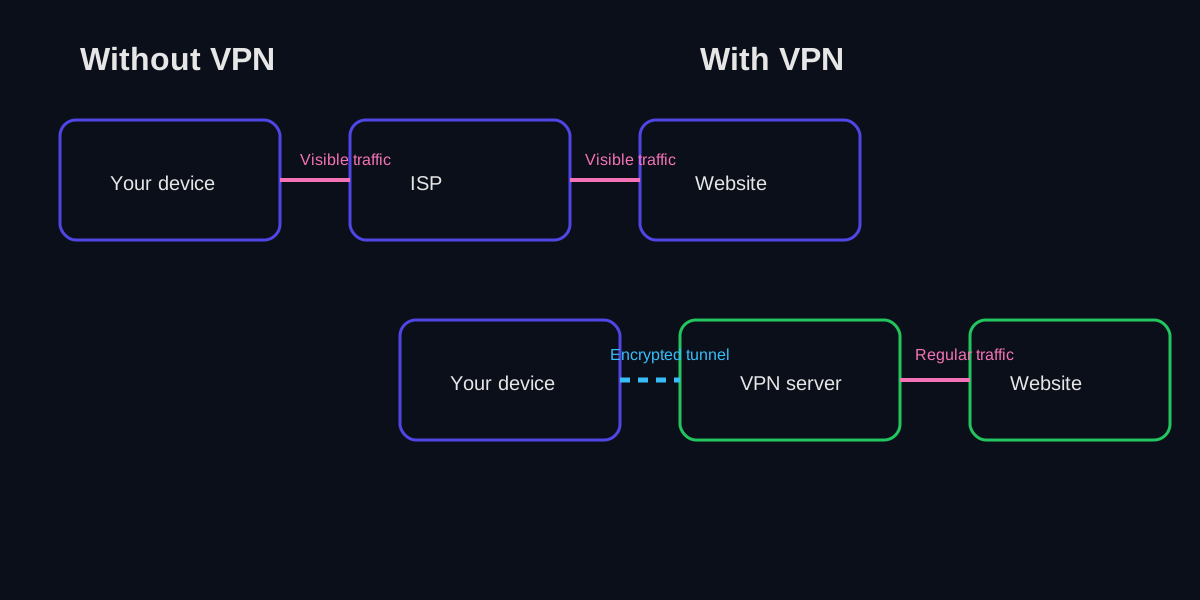 Traffic flows compared: without a VPN, your ISP and websites see everything. With a VPN, your ISP sees only encrypted traffic to the VPN server, and websites see the VPN’s IP — but the VPN provider inherits visibility.
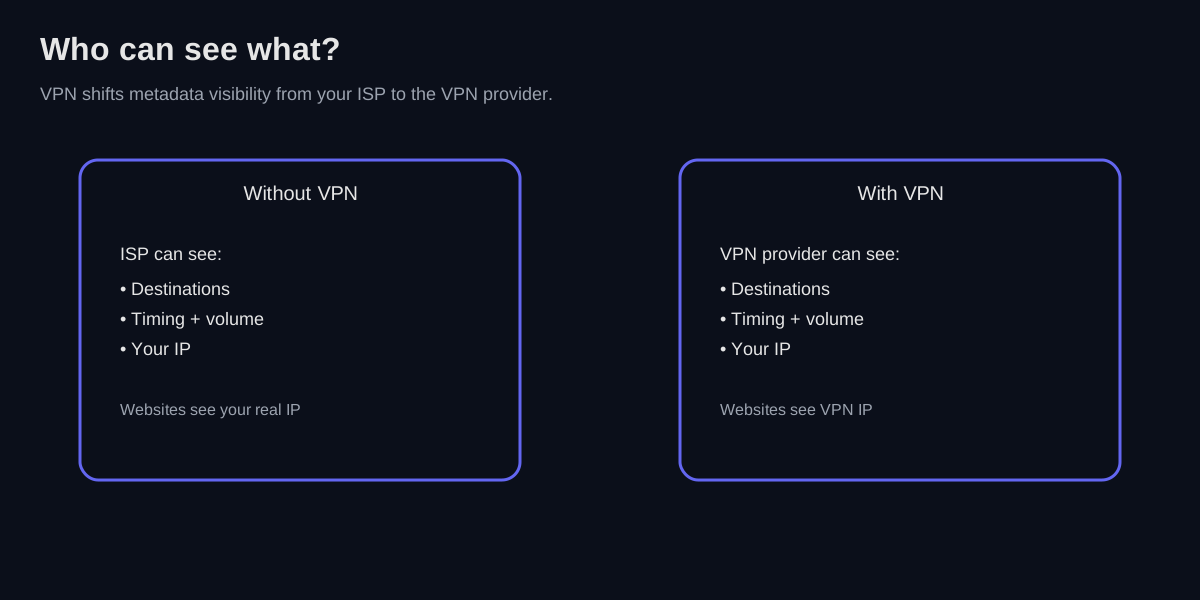 A VPN shifts trust: the metadata your ISP used to see now belongs to the VPN provider instead. A reputable no-logs provider with independent audits is essential.
The one‑sentence definition
A VPN creates an encrypted tunnel between your device and a trusted server, so anyone sitting in the middle (like your ISP or a public Wi‑Fi operator) can’t read your traffic in transit.
If you’ve ever used HTTPS, you’ve already benefited from encryption. The difference is scope: HTTPS encrypts a single connection to a site, while a VPN encrypts everything leaving your device, including DNS lookups, app traffic, and background sync.
What are you trying to do? VPN means different things depending on your goal:
- Privacy VPN (consumer providers like Mullvad, Proton): Hide your browsing activity from your ISP and mask your IP from websites. Your traffic exits through the provider’s servers.
- Remote Access VPN (self-hosted or mesh like Tailscale/WireGuard): Securely reach devices on your home network from anywhere. You’re the provider.
- Corporate VPN: Access internal work resources (dashboards, file shares, staging environments). Managed by your IT department.
Pick your goal first, then read the relevant sections below.
What a VPN actually does
1. Encrypts traffic between you and the VPN server
When you turn on a VPN, your device builds a secure tunnel to a VPN server. Your ISP can still see that you’re connected to a VPN, but not the contents of what you’re sending through it. Think of it like a locked mail tube: the postal service can see where the tube goes, not what’s inside.
2. Changes your apparent public IP address
Websites you visit see the VPN server’s IP address, not your home IP. That can be useful for privacy, geo‑testing, or reducing the amount of location data that sites can infer.
3. Helps on untrusted networks
Public Wi‑Fi is the classic example: a VPN protects traffic that might otherwise be sniffed by malicious actors on the same network. It won’t save you from a fake hotspot, but it dramatically reduces passive eavesdropping risk.
4. Changes your routing path
When a VPN is active, your device typically installs a new default route in your routing table so internet traffic flows through the tunnel first. That’s why your “public IP” changes — your traffic exits through the VPN server instead of your ISP.
How VPN tunneling actually works
Let’s get into the weeds for a minute. When you send data through a VPN, your original IP packet gets wrapped inside another packet — like putting a letter in an envelope, then putting that envelope in a secure tube.
The encapsulation process
Here’s what happens when you visit a website through a VPN:
- Your device creates the original packet — a normal IP packet destined for, say,
93.184.216.34(example.com). - The VPN client encrypts that entire packet — headers and all — using the negotiated cipher (often ChaCha20 for WireGuard or AES-256 for OpenVPN).
- A new outer packet is created — this one is addressed to the VPN server’s IP. The encrypted blob becomes the payload of this outer packet.
- The outer packet traverses the internet normally — routers see only the VPN server as the destination.
- The VPN server decrypts and forwards — it peels off the outer layer, decrypts your original packet, and sends it to the actual destination.
The response follows the reverse path: the VPN server encrypts the incoming packet, wraps it, and sends it back to you.
What the packet structure looks like
┌─────────────────────────────────────────────────────────┐
│ Outer IP Header (Your IP → VPN Server IP)               │
├─────────────────────────────────────────────────────────┤
│ UDP/TCP Header (usually UDP for WireGuard/OpenVPN)      │
├─────────────────────────────────────────────────────────┤
│ ┌─────────────────────────────────────────────────────┐ │
│ │ ENCRYPTED PAYLOAD                                   │ │
│ │ ┌─────────────────────────────────────────────────┐ │ │
│ │ │ Original IP Header (Your IP → example.com)      │ │ │
│ │ ├─────────────────────────────────────────────────┤ │ │
│ │ │ Original TCP/UDP Header                         │ │ │
│ │ ├─────────────────────────────────────────────────┤ │ │
│ │ │ Your actual data (HTTP request, etc.)           │ │ │
│ │ └─────────────────────────────────────────────────┘ │ │
│ └─────────────────────────────────────────────────────┘ │
└─────────────────────────────────────────────────────────┘
This double-wrapping is why VPNs reduce your effective MTU — you’re adding 40-60 bytes of overhead per packet, depending on the protocol.
Most modern VPN protocols use UDP because it’s faster and doesn’t create “TCP over TCP” problems. Running TCP inside TCP causes TCP meltdown — when the outer connection retransmits, so does the inner one, creating a cascading mess.
What a VPN does not do
A VPN is not a magic invisibility cloak. It does not make you anonymous, and it does not prevent you from being tracked by cookies, browser fingerprinting, or accounts you log into.
- A VPN doesn’t hide you from the websites you use. If you sign into Google, Google still knows it’s you.
- A VPN doesn’t protect you from phishing or malware. If you click a bad link, a VPN won’t save you.
- A VPN doesn’t make a weak password strong. That’s still on you.
The trust trade‑off (who can see what now)
A VPN doesn’t eliminate trust — it moves it. Without a VPN, your ISP can see the destinations you connect to. With a VPN, your VPN provider can see that metadata instead. That’s why logging policies matter, and why reputable providers publish audits (like Mullvad’s infrastructure audit or ProtonVPN’s no-logs audit). You’re choosing who you trust with your traffic’s “outside envelope,” not erasing it from existence.
If that trade‑off feels uncomfortable, you’re not wrong. It’s why many power users prefer self‑hosted VPNs or mesh tools like Tailscale — you become the provider.
Common VPN use cases (the legit ones)
- Safer public Wi‑Fi – Your traffic is encrypted from your device to the VPN server, so snooping is much harder.
- Remote access to a home network – A VPN can let you reach your homelab or NAS without exposing ports publicly.
- Business access – Companies use VPNs to allow employees to access internal systems securely.
- Testing from another region – Developers use VPNs to verify localization, pricing, or regional content rules.
VPNs vs proxies (not the same thing)
A proxy server can forward traffic for a single app (usually your browser), but it doesn’t encrypt everything on your device. A VPN works at the network layer, so it covers all traffic unless you intentionally split it. If you need broad protection, a proxy is the wrong tool. (Note: reverse proxies like Caddy or Nginx are a different concept entirely — they sit in front of your servers, not your client. I cover those in the reverse proxy guide.)
If you’re curious about modern remote access that feels like magic, read my Tailscale guide — it’s a newer, more user‑friendly approach built on WireGuard.
VPN types, in plain English
- Consumer VPNs (Nord, Mullvad, Proton, etc.): You connect to a shared server and browse from there.
- Corporate VPNs: Company‑managed servers that only employees can access.
- Mesh VPNs (Tailscale, Headscale): Devices connect directly to each other in a private mesh, often with identity‑based access controls.
A quick note on corporate VPNs
In many companies, the VPN is really just a gate into internal systems — dashboards, staging environments, and file shares. It’s usually combined with single sign‑on and sometimes MFA. This is less about privacy and more about access control.
VPN protocols: a deep dive
Different VPNs use different tunnel protocols. Here’s the full rundown — including some you should probably avoid.
WireGuard
WireGuard is the new hotness, and deservedly so. It’s around 4,000 lines of code (compared to OpenVPN’s 100,000+), which makes it easier to audit and harder to hide bugs in. It uses modern cryptography (Curve25519 for key exchange, ChaCha20-Poly1305 for encryption) and establishes connections in milliseconds.
The trade-off? It’s opinionated — you can’t swap out ciphers like you can with OpenVPN. For most people, that’s actually a feature, not a bug. Fewer knobs means fewer ways to misconfigure it.
OpenVPN
OpenVPN has been the workhorse of the VPN world since 2001. It runs over either TCP or UDP, supports a dizzying array of cipher configurations, and works almost everywhere. The downside is complexity — both in the codebase and in configuration. If you’ve ever stared at a .ovpn file wondering what half the directives do, you’re not alone.
Still widely used in enterprise environments where customization matters more than simplicity.
IKEv2/IPsec
IKEv2 (Internet Key Exchange version 2) paired with IPsec is the protocol you’ll find baked into most operating systems. It’s fast, handles network changes gracefully (great for mobile), and is standardized via RFC 7296.
The downside? IPsec configuration is notoriously fiddly. There’s a reason enterprise network admins both love and hate it. But if your VPN app “just works” on iOS or Windows, there’s a good chance IKEv2 is doing the heavy lifting.
L2TP/IPsec
L2TP (Layer 2 Tunneling Protocol) by itself provides no encryption — it’s purely a tunneling protocol. When paired with IPsec, it becomes secure, but the combination is showing its age. It uses fixed ports (UDP 500 and 4500), making it easy to block, and the double encapsulation adds overhead.
You’ll still find L2TP/IPsec in legacy corporate setups, but there’s rarely a good reason to choose it for new deployments.
PPTP (avoid this)
PPTP was revolutionary in 1999. Today, it’s a security liability. The MS-CHAPv2 authentication it uses has been thoroughly broken since 2012, and the encryption can be cracked in hours. If you see PPTP as an option, run the other way.
SSTP
SSTP (Secure Socket Tunneling Protocol) is Microsoft’s answer to VPN-over-HTTPS. It wraps traffic in SSL/TLS, making it hard to block (it looks like regular HTTPS traffic). Useful in restrictive environments, but Windows-centric and not widely supported elsewhere.
Protocol comparison table
| Protocol | Speed | Security | Mobile Support | Ease of Setup | Best For |
|---|---|---|---|---|---|
| WireGuard | Excellent | Excellent | Great (MOBIKE-like) | Easy | Modern deployments, speed-sensitive use |
| OpenVPN | Good | Excellent | Good | Moderate | Enterprise, legacy compatibility |
| IKEv2/IPsec | Very Good | Excellent | Excellent | Easy (native OS) | Mobile users, built-in clients |
| L2TP/IPsec | Moderate | Good | Good | Easy | Legacy systems only |
| SSTP | Good | Good | Windows only | Easy (Windows) | Bypassing firewalls on Windows |
| PPTP | Fast | Broken | Wide | Easy | Nothing. Don’t use it. |
Split tunneling vs full tunneling
Some VPNs let you choose split tunneling, where only certain apps or domains go through the VPN. The rest of your traffic goes out normally. Full tunneling routes everything through the VPN, which is simpler and usually more private, but can be slower or break local devices.
VPN vs HTTPS (and why both matter)
HTTPS protects browser‑to‑website traffic. A VPN protects device‑to‑internet traffic. The overlap is large, but not total:
- VPNs protect non‑browser apps that might not use HTTPS correctly.
- HTTPS does nothing for DNS requests unless you use DoH or DoT.
- If you already use HTTPS everywhere, the VPN is mostly about metadata, routing, and untrusted networks.
DNS: the leaky faucet people forget about
Even if your traffic is encrypted, DNS requests can reveal what you’re trying to access. A VPN should either run its own DNS resolver or tunnel your DNS queries through the VPN. If your DNS queries escape, it’s called a DNS leak and it defeats much of the privacy value.
What counts as a “leak”? It’s not just your ISP — if your DNS queries go to your home router (which then forwards them to your ISP), that’s still a leak. Any DNS path outside the VPN tunnel exposes your browsing destinations.
Using DNS-over-HTTPS (DoH) in your browser? That only covers browser traffic. Other apps (email clients, chat apps, system services) still use OS-level DNS, which may leak outside the VPN. For full coverage, you need the VPN to handle all DNS or configure DoH/DoT at the system level.
You can test for DNS leaks at dnsleaktest.com or ipleak.net.
Kill switches and why they matter
A kill switch is a safety feature that blocks all internet traffic if the VPN disconnects unexpectedly. Without it, your traffic can fall back to the normal route for a few seconds — which is exactly the moment you didn’t want it to.
Performance: the hidden cost
VPNs add latency because your traffic now takes a detour. They also add CPU overhead for encryption. On modern hardware it’s usually fine, but on phones or small routers it can be noticeable. If your video calls get choppy, the VPN is a prime suspect.
MTU, fragmentation, and the occasional weird bug
VPNs can reduce your effective MTU because packets are wrapped inside other packets. That overhead can cause fragmentation and lead to odd issues: a site loads but images don’t, or large uploads stall. Some VPN clients auto‑tune MTU; if you’re troubleshooting “mysterious” network bugs, it’s worth checking.
Troubleshooting common VPN issues
VPNs work great until they don’t. Here’s how to diagnose the usual suspects.
”Connected but no internet”
This is the most common complaint. The tunnel is up, but nothing loads.
- Check your DNS — Your VPN might have connected but failed to push DNS settings. Try
nslookup example.comto see if DNS resolves. If not, temporarily set DNS to8.8.8.8or your VPN’s DNS server to confirm it’s a DNS issue. (This is a diagnostic step, not a permanent fix — once confirmed, configure your VPN to properly push DNS.) - Routing table got weird — Run
ip route(Linux/Mac) orroute print(Windows) and look for conflicting default routes. Sometimes the VPN route doesn’t take precedence. - Firewall blocking tunnel traffic — If you’re on a corporate network, they might block VPN protocols. Try switching to TCP port 443 (looks like HTTPS).
Slow speeds
- Wrong server — Pick a server geographically closer to you. Routing to another continent adds 100+ ms of latency.
- Protocol mismatch — If you’re on OpenVPN/TCP, switch to UDP or WireGuard.
- ISP throttling — Some ISPs throttle VPN traffic. Test with fast.com with and without VPN.
- MTU issues — If speeds crater on large transfers but small requests work fine, try lowering MTU to 1400 or 1280.
Connection drops randomly
- Aggressive NAT timeout — Some routers drop UDP connections after 30 seconds of inactivity. Enable keepalives (WireGuard calls this
PersistentKeepalive). - Network switching — IKEv2 handles this well; OpenVPN doesn’t. If you’re on mobile, IKEv2 or WireGuard are better choices.
- Kill switch triggering — Check if your VPN’s kill switch is overly aggressive. Some block traffic even during brief reconnects.
DNS leaks
Your VPN is connected but your DNS queries are escaping through your normal ISP.
- Test at dnsleaktest.com
- Check VPN settings for “Use VPN DNS” or similar
- On Linux, check
/etc/resolv.conf— if it’s pointing to your router instead of the VPN’s DNS, that’s the leak - Consider running systemd-resolved or manually configuring DNS
”WebRTC leak” warnings
Even with a VPN, browsers can leak your real IP through WebRTC. This is a browser issue, not a VPN issue. Disable WebRTC in your browser settings, or use extensions like uBlock Origin which can block WebRTC leaks.
Site blocks VPN traffic
Some services (streaming, banking) actively block known VPN IP ranges.
- Try a different server — VPN providers rotate IPs; a fresh one might work.
- Use a residential IP — Some providers offer these for an extra fee.
- Split tunnel — Exclude that specific service from your VPN.
If your bank’s fraud detection keeps locking you out, it might be easier to whitelist banking from your VPN than to fight the system. Security is about trade-offs, not absolutes.
How to choose a VPN without falling for marketing
Here’s a practical checklist:
- Threat model: Do you want privacy from your ISP, or are you trying to safely access your home network?
- Logging policy: Read the provider’s privacy policy and independent audits. That One Privacy Site and Techlore’s VPN Toolkit are good starting points.
- Performance: VPNs add latency. Look for WireGuard‑based providers if possible.
- Jurisdiction: Different countries have different data retention laws. Five Eyes, Nine Eyes, and Fourteen Eyes alliances share intelligence.
- DNS behavior: A good VPN should prevent DNS leaks (when your DNS queries escape the tunnel).
- Transparency: If a provider won’t explain how it works, that’s a signal.
Threat model examples (pick the one that sounds like you)
- “I just want safe café Wi‑Fi.” A reputable consumer VPN is fine.
- “I need access to my NAS from anywhere.” A mesh VPN (Tailscale) or self‑hosted WireGuard server.
- “I’m testing a site from another region.” A VPN with multiple exit regions.
- “I want full privacy.” Be careful — no VPN gives full anonymity. Combine with good browser hygiene.
If you want private remote access, consider a mesh VPN like Tailscale. If you want privacy from your ISP, a reputable consumer VPN is better.
A short myth‑busting list
- “A VPN makes me anonymous.” → Not really. It changes your IP, but tracking still works.
- “VPNs are illegal.” → Legal in most countries, but rules vary. Check this overview.
- “Free VPNs are good enough.” → Free often means you are the product. A 2016 CSIRO study found 38% of free Android VPN apps contained malware.
- “A VPN hides me from my employer.” → If your employer controls the device, they likely still have visibility.
Where to go next
- Tailscale deep dive: Tailscale Explained: The Mesh VPN That Feels Like Magic
- Remote access walkthrough: Self‑Hosting With Tailscale
- WireGuard documentation: wireguard.com
- Privacy basics: EFF Surveillance Self‑Defense
- Test your VPN: ipleak.net
If you want me to recommend a VPN based on your specific use case, send me a note and I’ll help you pick one that fits your threat model.
01Reverse Proxy for a Homelab: Caddy Done Right
How to set up Caddy as a reverse proxy for your self-hosted services, with automatic HTTPS, internal domains, and clean URLs.
22min
02Tailscale Explained: The Mesh VPN That Feels Like Magic
A practical, human‑readable breakdown of how Tailscale works, why it's different, and when it's the right tool.
24min
03SSO for Self‑Hosted Apps: One Login to Rule Them All
How to set up single sign‑on for your homelab using Pocket ID, Tinyauth, and a reverse proxy, so you're not juggling dozens of passwords.
20min