
Self‑Hosting With Tailscale: Secure Access Without Open Ports
Self‑hosting is empowering — but opening ports on your router can feel like hanging a neon sign that says “Please scan me.” There’s a better way: private access via Tailscale. If you’re new here, self‑hosting just means running services on hardware you control.
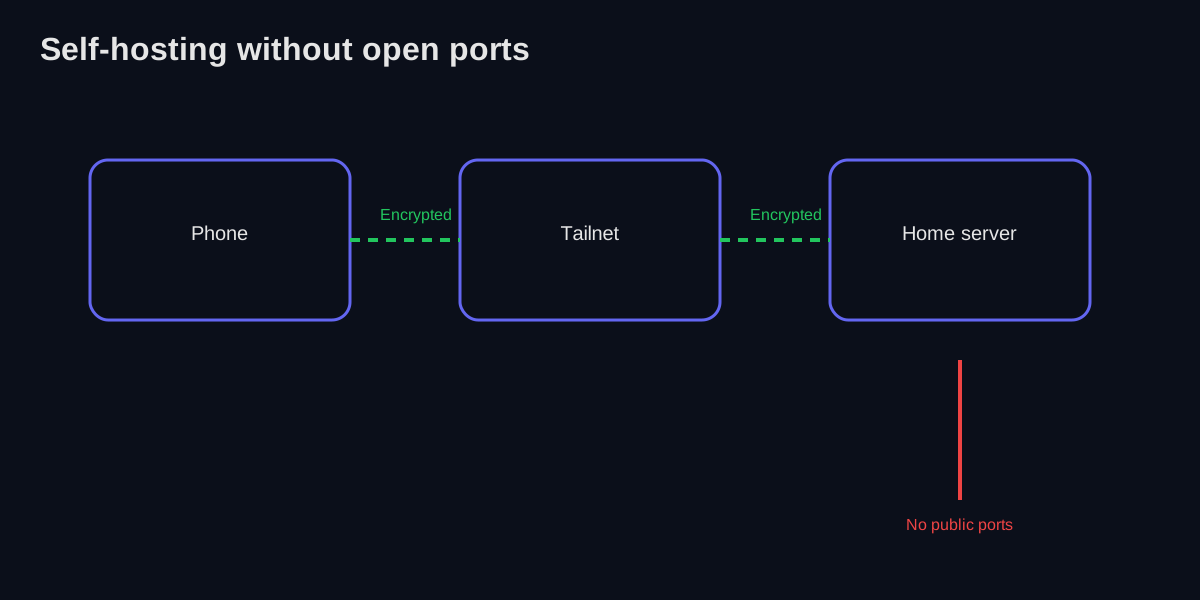 All traffic flows through an encrypted mesh overlay — no port forwarding, no public exposure. Your services are invisible to automated internet scans.
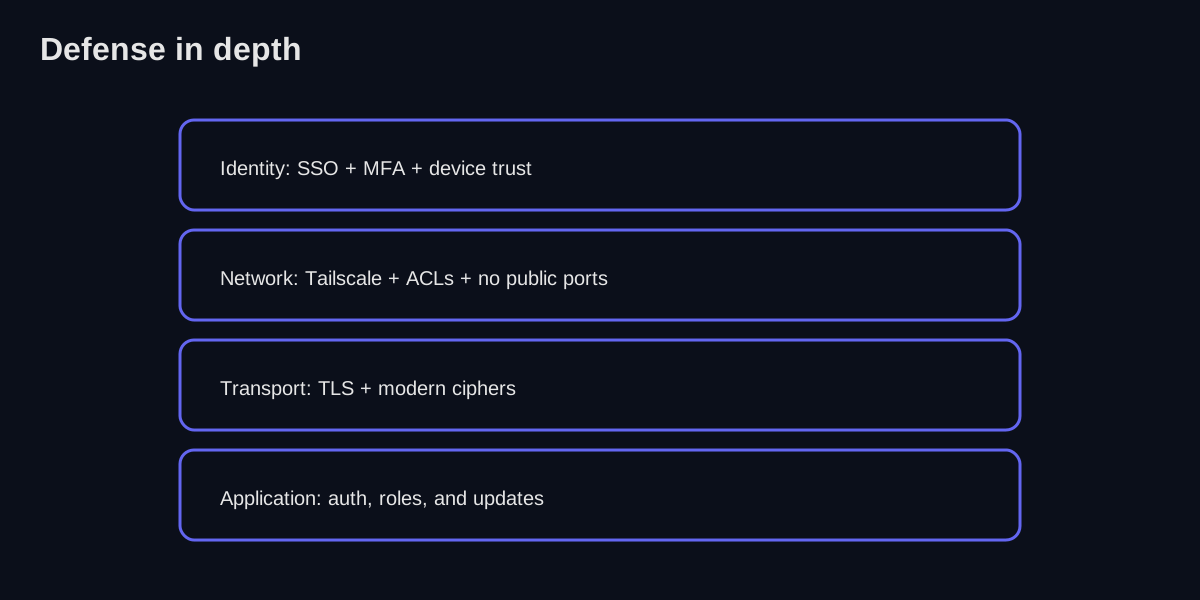 Defense in depth: identity, network, transport, and application layers each provide independent protection. If one layer fails, the others still hold.
Why self‑host in the first place?
- Control: Your data stays on your hardware.
- Customization: Configure services how you want.
- Reliability: Avoid vendor lock‑in.
If you’re new to the concept of VPNs, start with What Is a VPN?.
The threat model most people ignore
The average self‑hoster isn’t being targeted by a nation‑state. The real risks are opportunistic scans, default passwords, and unpatched services. Your goal is to make your box a terrible target for drive‑by attacks.
The risk of open ports
Classic self‑hosting guides say: “forward port 443 to your server.” That works, but it exposes your box to the entire internet. A safer default is to not expose anything publicly unless you must. If you’re unfamiliar with the term, port forwarding is essentially poking a hole through your router’s NAT.
If you do open ports, you’ve moved from “private” to “internet‑facing.” That’s when you need stronger patching discipline, monitoring, and rate‑limiting.
If the service is just for you (or your household), keep it private. Public exposure should be deliberate, not accidental.
The Tailscale pattern (private by default)
Tailscale gives you:
- Encrypted access between your devices
- Identity‑based access control (people, groups, tags)
- Zero port forwarding for private services
This makes home services feel like they’re “on the same Wi‑Fi,” even when you’re across the world.
The biggest win is that your services aren’t visible to the public internet at all. Most automated scans never even see the box.
A practical setup flow
1) Install Tailscale on your server
For Debian/Ubuntu-based systems:
curl -fsSL https://tailscale.com/install.sh | sh
sudo tailscale up
For other distributions, check the Tailscale install guide. You can also run the daemon in a container if you prefer Docker-only setups (more on that shortly).
Verify the connection:
tailscale status
# Should show your device and any others on your tailnet
2) Install Tailscale on your laptop/phone
Sign in with the same identity provider to join the tailnet. You can download clients from tailscale.com/download for macOS, Windows, iOS, and Android.
3) Turn on MagicDNS
This gives you friendly hostnames (e.g., media.tailnet) instead of IPs. Enable it in the Tailscale admin console under DNS settings.
Once enabled, you can reach your server like this:
ssh user@myserver  # Instead of ssh user@100.x.y.z
curl http://myserver:8096  # Jellyfin, for example
4) Lock it down with ACLs
Even within your tailnet, you can restrict access by device or user. Edit your ACL policy in the admin console:
{
  "acls": [
    {"action": "accept", "src": ["group:family"], "dst": ["tag:media:*"]},
    {"action": "accept", "src": ["group:admins"], "dst": ["*:*"]}
  ],
  "groups": {
    "group:family": ["user@example.com", "spouse@example.com"],
    "group:admins": ["you@example.com"]
  },
  "tagOwners": {
    "tag:media": ["group:admins"],
    "tag:server": ["group:admins"]
  }
}Use the “Preview” button in the admin console to test your ACLs before saving. Nothing like locking yourself out of your own server.
5) (Optional) Use Tailscale SSH
If you want to avoid copying SSH keys around, enable Tailscale SSH so access is tied to your identity provider and device posture:
sudo tailscale up --sshThen add to your ACL:
{
  "ssh": [
    {"action": "accept", "src": ["group:admins"], "dst": ["tag:server"], "users": ["autogroup:nonroot"]}
  ]
}
Now you can SSH without managing keys:
ssh myserver # Authenticates via Tailscale identity6) (Optional) Use a subnet router
If you have devices that can’t run Tailscale (smart TVs, printers, IoT gadgets), a subnet router advertises that LAN into your tailnet.
Setting up a subnet router (step-by-step)
This is one of Tailscale’s most powerful features, but the docs can be a bit scattered. Here’s the full walkthrough.
Step 1: Enable IP forwarding on the router machine
On Linux, you need to enable IP forwarding so packets can flow through:
echo 'net.ipv4.ip_forward = 1' | sudo tee -a /etc/sysctl.d/99-tailscale.conf
echo 'net.ipv6.conf.all.forwarding = 1' | sudo tee -a /etc/sysctl.d/99-tailscale.conf
sudo sysctl -p /etc/sysctl.d/99-tailscale.conf
Step 2: Advertise the subnet
Tell Tailscale which subnet(s) to advertise. If your LAN is 192.168.1.0/24:
sudo tailscale up --advertise-routes=192.168.1.0/24 --accept-routesStep 3: Approve the routes in the admin console
Go to the Machines page, find your subnet router, and click the ”…” menu → “Edit route settings” → enable the advertised routes.
Step 4: Accept routes on client devices
On devices that need to reach the subnet:
sudo tailscale up --accept-routesOr enable “Accept subnet routes” in the GUI clients.
Step 5: Verify connectivity
From a remote device:
ping 192.168.1.50 # Should reach your smart TV or printerYou can advertise multiple subnets: --advertise-routes=192.168.1.0/24,192.168.2.0/24. Useful for VLANs or multi-site setups.
Docker networking with Tailscale
Here’s where things get interesting (and where I spent way too many hours debugging). Docker’s networking model doesn’t play nicely with Tailscale out of the box. Let me save you the headache.
The problem
By default, Docker containers bind to 0.0.0.0, which includes your host’s Tailscale interface (tailscale0). But the container itself doesn’t have Tailscale credentials, so outbound connections from containers won’t route through your tailnet.
Option 1: Host network mode (simple but limited)
The easiest approach is network_mode: host, which makes the container share the host’s network stack:
services:
  jellyfin:
    image: jellyfin/jellyfin
    network_mode: host
    volumes:
      - ./config:/config
      - /media:/media
Now Jellyfin is accessible at http://myserver:8096 from any tailnet device. The downside: port conflicts become your problem.
Option 2: Tailscale sidecar container (more flexible)
Run Tailscale as a sidecar container that other containers can use as a network gateway. This is documented by Tailscale but here’s a working example:
services:
  tailscale:
    image: tailscale/tailscale:latest
    container_name: tailscale
    hostname: docker-services
    environment:
      - TS_AUTHKEY=tskey-auth-xxx  # Generate at admin console
      - TS_STATE_DIR=/var/lib/tailscale
      - TS_USERSPACE=false
    volumes:
      - ./tailscale-state:/var/lib/tailscale
      - /dev/net/tun:/dev/net/tun
    cap_add:
      - NET_ADMIN
      - SYS_MODULE
    restart: unless-stopped

  jellyfin:
    image: jellyfin/jellyfin
    network_mode: service:tailscale
    depends_on:
      - tailscale
    volumes:
      - ./jellyfin-config:/config
      - /media:/media
Now jellyfin shares the Tailscale container’s network. Access it at http://docker-services:8096 from your tailnet.
Don’t commit TS_AUTHKEY to git. Use a .env file or Docker secrets. Generate keys at admin/keys and consider making them ephemeral if you’re paranoid (like me).
Option 3: Tailscale on the host, containers on a bridge
If you run Tailscale on the host and containers on the default bridge network, you need to ensure the host’s firewall allows traffic from Docker’s bridge to reach Tailscale:
# Allow Docker bridge traffic to be forwarded
sudo iptables -I FORWARD -i docker0 -o tailscale0 -j ACCEPT
sudo iptables -I FORWARD -i tailscale0 -o docker0 -j ACCEPT
Or use firewalld:
sudo firewall-cmd --zone=trusted --add-interface=docker0 --permanent
sudo firewall-cmd --reload
Which option should you pick?
| Approach | Complexity | Best for | Tradeoffs |
|---|---|---|---|
| Host network mode | Low | Single-service setups, quick testing | Port conflicts, less isolation |
| Sidecar container | Medium | Multi-container stacks, per-service tailnet identity | More YAML, auth key management |
| Host Tailscale + bridge | Medium | Existing setups, many containers sharing host’s tailnet | Firewall rules needed, less portable |
In general: start with host network mode for simplicity. Move to sidecar when you need per-service hostnames or want containers to have their own tailnet identity. Use the bridge approach if you already run Tailscale on the host and just need containers to be reachable.
Debugging Docker + Tailscale
When things go wrong (and they will), here’s your checklist:
# Check Tailscale status
tailscale status

# Verify the container can reach the host's Tailscale IP
docker exec -it jellyfin ping 100.x.y.z

# Check if the service is listening on the right interface
docker exec -it jellyfin netstat -tlnp

# Verify routing from inside the container
docker exec -it jellyfin ip route
Tailscale Serve: HTTPS for local services
Tailscale Serve is one of those features that makes you wonder why you ever messed with reverse proxies. It exposes a local port over HTTPS to your tailnet, with automatic TLS certificates.
Basic usage
Expose a local web service:
# Serve localhost:8096 (Jellyfin) at https://myserver.tail1234.ts.net
tailscale serve https / http://localhost:8096
Check what’s being served:
tailscale serve statusNow you can access https://myserver.tail1234.ts.net from any device on your tailnet, with a valid TLS cert. No port 443 exposed to the internet.
Serving static files
# Serve files from a directory
tailscale serve https /files/ /home/user/shared-files
Serving a specific port on a path
# Multiple services on different paths
tailscale serve https /jellyfin http://localhost:8096
tailscale serve https /grafana http://localhost:3000
Making it persistent
By default, tailscale serve runs in the foreground. To make it persistent:
tailscale serve https --bg / http://localhost:8096Or use tailscale serve --set-path for permanent configuration.
Tailscale Funnel (public exposure, carefully)
Tailscale Funnel goes a step further: it exposes your service to the public internet via Tailscale’s infrastructure. This is useful for webhooks, demos, or sharing a dev server with a client.
tailscale funnel 443 onFunnel makes your service publicly accessible. Anyone with the URL can reach it. Use it intentionally, not accidentally.
Example services that are perfect for this
- Jellyfin or Plex for media
- Home Assistant for smart home dashboards
- Paperless‑ngx for document storage
- Grafana for monitoring your stack
- Audiobookshelf for audiobooks and podcasts
- Immich for photo backup (self-hosted Google Photos)
Here’s a favorite self‑hosting resource: r/selfhosted
Security hardening (the stuff that actually matters)
Tailscale handles network-level access beautifully, but you still need defense in depth. Here’s my baseline for any self-hosted box.
UFW (Uncomplicated Firewall)
If you’re on Ubuntu/Debian, UFW is the path of least resistance:
# Install and enable
sudo apt install ufw
sudo ufw default deny incoming
sudo ufw default allow outgoing

# Allow SSH (important: do this before enabling!)
sudo ufw allow ssh

# If you need local LAN access
sudo ufw allow from 192.168.1.0/24

# Enable the firewall
sudo ufw enable
sudo ufw status verboseAlways allow SSH before enabling UFW. Ask me how I know.
The beauty of Tailscale: you don’t need to punch holes for your services. UFW can deny all incoming traffic from the public internet while Tailscale handles private access.
fail2ban (because bots are relentless)
fail2ban watches log files and bans IPs that fail authentication too many times. Even if you only expose SSH:
sudo apt install fail2ban
sudo systemctl enable fail2ban
sudo systemctl start fail2ban
Create /etc/fail2ban/jail.local:
[DEFAULT]
bantime = 1h
findtime = 10m
maxretry = 5

[sshd]
enabled = true
port = ssh
logpath = %(sshd_log)s
backend = %(sshd_backend)s
Check banned IPs:
sudo fail2ban-client status sshdCrowdSec (crowd-sourced threat intelligence)
For internet-facing services, CrowdSec is worth considering. It works like fail2ban but shares threat intelligence across its user base — if an IP attacks someone else’s server, your server learns about it too. It integrates well with reverse proxies like Nginx, Traefik, and Caddy, making it a good complement to your existing stack.
Automatic security updates
For Ubuntu/Debian, enable unattended-upgrades:
sudo apt install unattended-upgrades
sudo dpkg-reconfigure -plow unattended-upgrades
For a server that doesn’t need to be up 24/7, I also enable automatic reboots when required:
# In /etc/apt/apt.conf.d/50unattended-upgrades
Unattended-Upgrade::Automatic-Reboot "true";
Unattended-Upgrade::Automatic-Reboot-Time "03:00";
SSH hardening
If you’re not using Tailscale SSH, harden your SSH config in /etc/ssh/sshd_config:
PermitRootLogin no
PasswordAuthentication no
PubkeyAuthentication yes
MaxAuthTries 3
AllowUsers yourusername
Then:
sudo systemctl restart sshdWith Tailscale SSH, you can go even further and disable the regular SSH daemon entirely on the public interface.
Backups are not optional
If it’s worth hosting, it’s worth backing up. A basic rule: 3‑2‑1 backups (three copies, two different media, one off‑site). Even a cheap external drive plus an encrypted cloud backup is better than nothing.
For Docker setups, back up your volumes:
# Simple backup script
#!/bin/bash
BACKUP_DIR="/backups/$(date +%Y-%m-%d)"
mkdir -p "$BACKUP_DIR"

# Stop services for consistent backups
docker compose stop

# Backup volumes
tar -czf "$BACKUP_DIR/jellyfin-config.tar.gz" ./jellyfin-config
tar -czf "$BACKUP_DIR/paperless-data.tar.gz" ./paperless-data

# Restart services
docker compose start

# Sync to offsite (B2, S3, rsync.net, etc.)
rclone sync "$BACKUP_DIR" remote:backups/The “stop container + tar” approach works for config files and flat data, but databases need native backup tools. Use pg_dump for Postgres, mysqldump for MySQL/MariaDB, or sqlite3 .backup for SQLite. These ensure consistent, recoverable snapshots even if the database is running.
When you do need public access
Sometimes a service must be public (a personal site, a demo, a webhook endpoint). In that case, I still prefer a layered setup:
- Put it behind a reverse proxy (Nginx, Caddy, Traefik).
- Terminate TLS there and keep internal services private.
- Rate‑limit or require auth for anything that isn’t meant for the world.
If you want a quick, clean way to do this, look into Caddy — it handles HTTPS automatically via Let’s Encrypt and is very easy to configure:
# Caddyfile
yourdomain.com {
    reverse_proxy localhost:8080
}
That’s the entire config for a production-ready reverse proxy with automatic TLS. Caddy’s documentation is excellent.
Security layers that still matter
Tailscale solves the network access problem, but you still want good app‑level hygiene:
- TLS for any web UI, even inside your tailnet.
- MFA on your identity provider.
- App‑level auth (don’t leave dashboards wide open).
- A basic firewall on the server for defense in depth.
Updates and patching (the boring part that saves you)
Most real‑world compromises happen because something wasn’t updated. Set a reminder, automate updates where safe, and subscribe to release notes for the apps you expose.
For Docker images, Watchtower can auto-update containers:
services:
  watchtower:
    image: containrrr/watchtower
    volumes:
      - /var/run/docker.sock:/var/run/docker.sock
    environment:
      - WATCHTOWER_CLEANUP=true
- WATCHTOWER_SCHEDULE=0 0 4 * * * # 4 AM dailyWatchtower is great for low-risk services. For databases or anything with migration steps, update manually and test.
Monitoring and health checks
Even a tiny homelab benefits from knowing when things break. Here are options from simple to sophisticated.
The simplest approach: systemd timers + curl
Create /usr/local/bin/health-check.sh:
#!/bin/bash
SERVICES=(
    "http://localhost:8096/health"  # Jellyfin
    "http://localhost:3000/api/health"  # Grafana
    "http://localhost:8000/api/health"  # Paperless
)

for url in "${SERVICES[@]}"; do
    if ! curl -sf "$url" > /dev/null; then
        echo "ALERT: $url is down" | mail -s "Service Down" you@example.com
    fi
done
Run it every 5 minutes with a systemd timer or cron.
Uptime Kuma (self-hosted uptime monitoring)
Uptime Kuma is a beautiful, self-hosted alternative to services like Pingdom:
services:
  uptime-kuma:
    image: louislam/uptime-kuma:1
    volumes:
      - ./uptime-kuma-data:/app/data
    ports:
      - "3001:3001"
    restart: unless-stopped
It supports HTTP, TCP, DNS, and Docker container monitoring, with notifications via Slack, Discord, Telegram, email, and dozens more.
Docker health checks
Add health checks to your compose files so Docker knows when a service is unhealthy:
services:
  jellyfin:
    image: jellyfin/jellyfin
    healthcheck:
      test: ["CMD", "curl", "-f", "http://localhost:8096/health"]
      interval: 30s
      timeout: 10s
      retries: 3
      start_period: 40s
Check status:
docker ps  # Shows health status
docker inspect jellyfin | jq '.[0].State.Health'
Prometheus + Grafana (the full stack)
If you want metrics, dashboards, and alerting, the Prometheus + Grafana stack is the industry standard. It’s more work to set up, but you get:
- Historical metrics (CPU, RAM, disk, network)
- Custom dashboards
- Alerting rules
- Integration with almost everything
The dockprom project is a good starting point for Docker-based setups.
Quick commands for debugging
# Check if a service is listening
ss -tlnp | grep :8096

# Check container logs
docker logs jellyfin --tail 100

# Check systemd service status
systemctl status tailscaled

# Tailscale connectivity check
tailscale ping myserver

# Check for open ports (from outside)
nmap -Pn your-public-ip
Troubleshooting checklist
- Can’t connect? Check the Tailscale status page and confirm both devices show “active.”
- High latency? You might be relayed through DERP; try
tailscale ping <device>to check. - DNS issues? Confirm MagicDNS is enabled and your device uses the Tailscale DNS settings.
- App unreachable? Check local firewall rules and service bindings (is it listening on
0.0.0.0or justlocalhost?). - Docker container not reachable? Verify network mode and check if the port is exposed correctly.
# Useful debugging commands
tailscale status
tailscale ping server-name
tailscale netcheck  # Shows NAT type and DERP regions
tailscale bugreport # Generates a debug reportGive your servers tags and friendly names early. You’ll thank yourself later when you’re SSH‑ing from a phone.
Summary
Tailscale makes private access to self‑hosted services feel effortless — and safer. Combine it with basic hardening (firewall, fail2ban, updates) and you’ve got a setup that’s both convenient and defensible.
The pattern is simple: keep services private by default, expose only what you must, and monitor enough to know when things break.
Want the deeper networking explanation? Read Tailscale Explained.
Further reading
- Tailscale Documentation
- Tailscale Docker Guide
- Tailscale Serve & Funnel
- fail2ban Wiki
- UFW Documentation
- Awesome Self-Hosted — curated list of self-hostable software
01Reverse Proxy for a Homelab: Caddy Done Right
How to set up Caddy as a reverse proxy for your self-hosted services, with automatic HTTPS, internal domains, and clean URLs.
22min
02SSO for Self‑Hosted Apps: One Login to Rule Them All
How to set up single sign‑on for your homelab using Pocket ID, Tinyauth, and a reverse proxy, so you're not juggling dozens of passwords.
20min
03Tailscale Explained: The Mesh VPN That Feels Like Magic
A practical, human‑readable breakdown of how Tailscale works, why it's different, and when it's the right tool.
24min