
Tailscale Explained: The Mesh VPN That Feels Like Magic
The first time you SSH into your home server from a coffee shop without opening a port on your router, it feels like magic. Tailscale is that kind of magic — but it’s actually just smart networking built on solid cryptography.
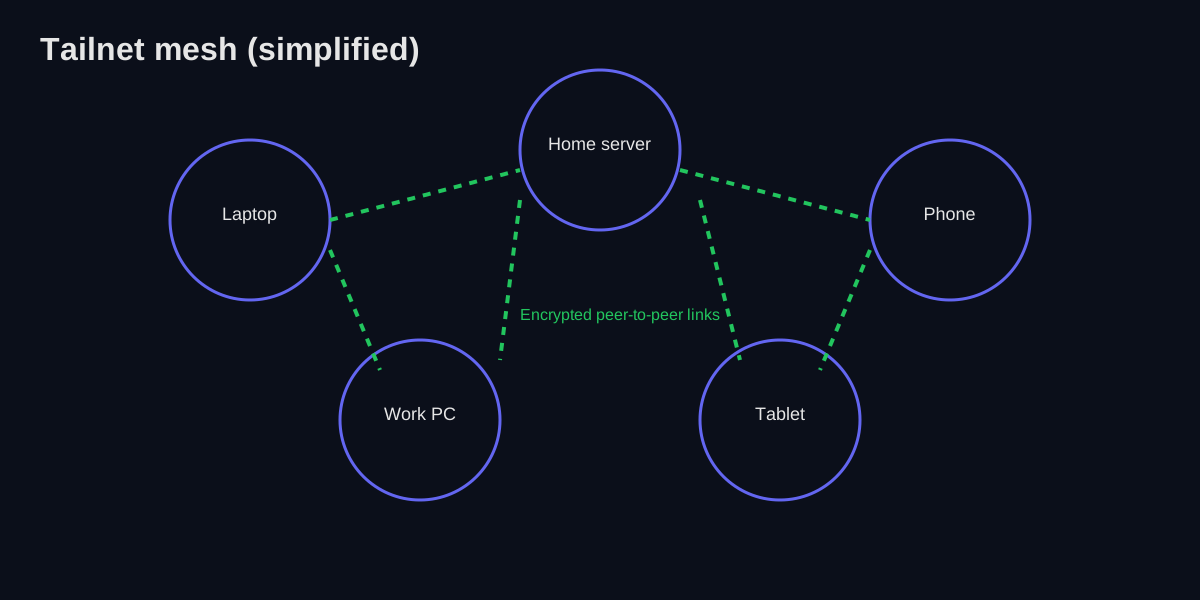
What Tailscale is (and is not)
Tailscale is a mesh VPN built on WireGuard. Instead of routing all your traffic through a single VPN server, it creates direct, encrypted connections between your devices whenever possible. Think of it as a private mesh network with strong identity controls.
- It is: a secure way to connect devices across the internet.
- It is not: a traditional VPN for hiding your browsing from websites (though you can route traffic that way if you want).
If you’re new to VPNs entirely, start here: What Is a VPN?
The short version of how it works
- You install the app on devices you own.
- You log in with an identity provider (Google, GitHub, etc.).
- Tailscale brokers the connection so your devices can find each other.
- Devices connect directly (peer‑to‑peer) whenever possible.
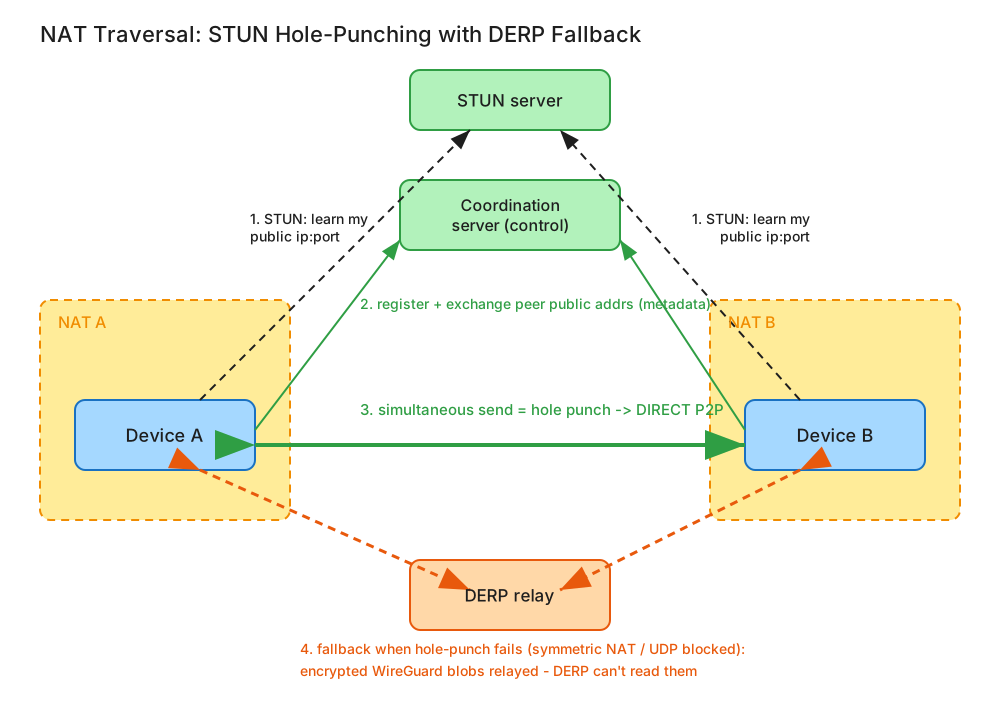
Under the hood, it uses a mix of STUN and NAT traversal to discover how each device can be reached. If the network won’t allow it, Tailscale falls back to relays (DERP).
WireGuard under the hood
Tailscale uses WireGuard, which is fast, minimal, and audited. WireGuard gives you:
- Strong modern cryptography (ChaCha20-Poly1305 for encryption, Curve25519 for key exchange)
- Low overhead (great for laptops and mobile)
- Simple key management
- ~4,000 lines of code vs 100,000+ for OpenVPN — less code means fewer bugs
Here’s WireGuard’s official paper for the curious: WireGuard: Next Generation Kernel Network Tunnel
How WireGuard key exchange actually works
Here’s where it gets nerdy (in a good way). WireGuard uses the Noise Protocol Framework — specifically the Noise_IKpsk2 handshake pattern. Don’t worry, I’ll translate.
When two devices want to talk:
-
Each device has a static key pair — a long-term Curve25519 public/private key. This is your device’s cryptographic identity.
-
The initiator generates an ephemeral key pair — a temporary keypair used only for this handshake. This provides forward secrecy: even if your long-term keys get compromised later, past sessions can’t be decrypted.
-
Diffie-Hellman happens (multiple times):
- Initiator’s ephemeral × Responder’s static
- Initiator’s static × Responder’s static
- Initiator’s ephemeral × Responder’s ephemeral
-
All those DH outputs get mixed together using HKDF to derive the actual symmetric encryption keys.
-
Optional pre-shared key gets mixed in too (the
psk2part), adding quantum resistance if you’re paranoid about future quantum computers.
The whole handshake is 1-RTT (one round trip) and fits in a single UDP packet each way. Compare that to TLS, which needs multiple round trips and way more complexity.
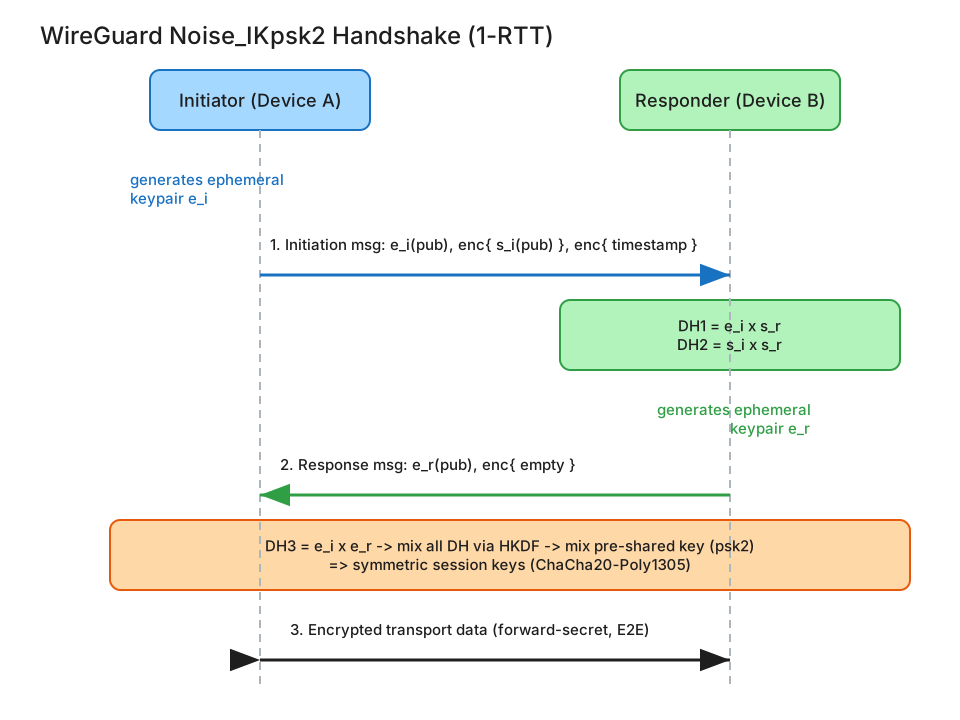
Noise_IKpsk2 handshake: three Diffie-Hellman exchanges plus an optional PSK, all mixed via HKDF into forward-secret session keys — in a single round trip. Open the editable Excalidraw source.Tailscale’s control plane distributes the static public keys. Your device never sends its private key anywhere — Tailscale just tells Device A “here’s Device B’s public key” and vice versa. The actual key exchange happens directly between devices.
For the full cryptographic details, see the WireGuard protocol documentation.
Control plane vs data plane (why it’s still fast)
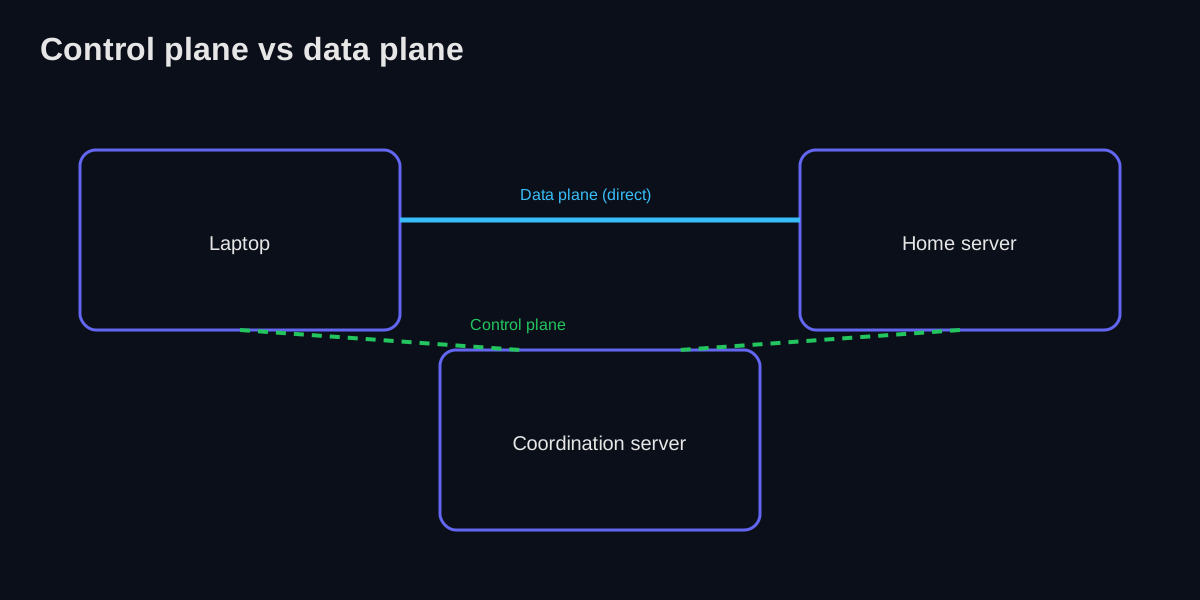
Tailscale has a control plane that helps devices discover each other and exchange keys, but the data plane (the actual traffic) goes directly between your devices when possible. That’s why it feels fast — you’re not hair‑pinning through a central server unless you have to.
Because only metadata flows through the control plane, the coordination service never sees your actual encrypted traffic. If you self‑host with Headscale, you take over that coordination role.
Tailscale vs Headscale (quick breakdown)
- Tailscale: hosted control plane, easiest setup, polished admin UI.
- Headscale: open‑source control plane you host yourself, more work, more control.
If you already run a homelab and want to minimize third‑party trust, Headscale is worth a look.
How Tailscale compares to traditional VPN architectures
Let me be blunt: traditional VPNs and Tailscale solve fundamentally different problems. Here’s the real breakdown:
Traditional hub-and-spoke VPN (OpenVPN, IPsec, etc.)
          ┌─────────────┐
          │  VPN Server │
          │  (gateway)  │
          └──────┬──────┘
       ┌─────────┼─────────┐
       │         │         │
       ▼         ▼         ▼
Device A Device B Device C- All traffic routes through central server — even if Device A wants to talk to Device B sitting next to it
- Single point of failure — server goes down, everyone’s disconnected
- Bandwidth bottleneck — server handles all traffic
- Perimeter security model — once you’re “in,” you’re trusted
- Complex configuration — certificates, firewall rules, port forwarding
Tailscale’s mesh architecture
    Device A ◄────────► Device B
        ▲                   ▲
        │                   │
        └───────┬───────────┘
                │
                ▼
            Device C

    (Control plane handles discovery,
but data flows directly)- Direct peer-to-peer connections — traffic takes the shortest path
- No single point of failure — control plane outage doesn’t kill existing connections
- Scales horizontally — adding devices doesn’t increase central load
- Zero-trust model — every device authenticated individually
- Almost zero configuration — install, log in, done
The “site-to-site” problem
Traditional VPNs excel at connecting networks (your office LAN to the datacenter). Tailscale excels at connecting devices regardless of what network they’re on. Different tools, different jobs.
If you need a contractor to access one internal service without touching the rest of your network, Tailscale wins. If you need to bridge two entire subnets with legacy equipment that can’t run clients, traditional VPN (or Tailscale’s subnet routers) might be the answer.
Identity + keys (the real security story)
Every device gets a unique key pair, and access is tied to your identity provider. That’s the zero‑trust feel: instead of trusting a network, you trust who (and which device) is connecting. Under the hood it’s standard public‑key cryptography, but with sane defaults.
Tailscale also rotates keys over time, which limits the impact of a long‑lost laptop or a compromised device.
A note on identity provider trust
Here’s the uncomfortable truth: your tailnet is only as secure as your identity provider. If someone compromises your Google or GitHub account, they can add their own device to your tailnet and access everything your ACLs allow. This is the trade-off for the convenience of SSO.
Mitigations worth considering:
- Enable MFA on your identity provider — preferably with hardware security keys, not SMS
- Use a separate account for your homelab if you’re paranoid (a dedicated Google Workspace account, for example)
- Enable Tailnet Lock — this requires existing nodes to sign new device keys, so even a compromised identity provider can’t unilaterally add devices
Tailnet Lock is the nuclear option. It adds friction (you need to approve new devices from an existing node), but it means your tailnet’s security doesn’t collapse if your identity provider does.
NAT traversal + DERP relays (the “how did it work?” part)
Most home networks sit behind NAT, which makes inbound connections hard. Tailscale uses NAT traversal techniques to punch through when it can. If that fails, it falls back to DERP relays (basically a secure relay network) so your devices still connect.
Relays are a fallback — not the default. You can check in the Tailscale admin panel whether a connection is direct or relayed.
Direct connections are faster and more private, but relays make sure it still works in tricky networks (office Wi‑Fi, hotels, strict firewalls).
How NAT hole-punching actually works (step by step)
NAT hole-punching sounds like hacker movie nonsense, but it’s actually elegant. Here’s what happens when Device A (behind NAT) wants to connect to Device B (also behind NAT):
Step 1: STUN discovery
Both devices send packets to Tailscale’s STUN servers. The STUN server sees the external IP and port that the NAT assigned, and reports it back. Now each device knows its own public-facing address.
Device A ──► NAT A ──► STUN Server
                           │
            "Your public address is 1.2.3.4:54321"
Step 2: Coordination server exchange
Tailscale’s control plane tells each device the other’s public address. Device A learns that Device B is at 5.6.7.8:12345, and vice versa.
Step 3: Simultaneous connection attempts
Here’s the magic: both devices send packets to each other at roughly the same time.
Device A (1.2.3.4:54321) ──────► Device B (5.6.7.8:12345)
Device B (5.6.7.8:12345) ──────► Device A (1.2.3.4:54321)
When Device A sends a packet out to Device B, NAT A creates a mapping: “packets from Device A going to 5.6.7.8:12345 should use external port 54321.”
When Device B’s packet arrives at NAT A, it looks like a reply to Device A’s outbound packet — so NAT A lets it through. The same happens in reverse at NAT B.
Step 4: Connection established
Both NATs have now “punched holes” for this specific peer. Traffic flows directly.
Some NATs are jerks. Symmetric NAT assigns a different external port for every destination, breaking the assumption that Device B can reach the same port Device A used for STUN. Corporate firewalls often block UDP entirely. That’s when DERP kicks in.
For more details, see Tailscale’s excellent How NAT traversal works blog post.
DERP relay infrastructure: what’s actually happening
DERP stands for Designated Encrypted Relay for Packets (yes, really). When direct connections fail, your traffic routes through DERP servers — but here’s the key thing: DERP can’t read your traffic. It’s still WireGuard-encrypted end-to-end; DERP just forwards the opaque blobs.
Tailscale operates DERP servers worldwide:
- North America: NYC, San Francisco, Seattle, Chicago, Dallas, Miami, Denver, Los Angeles
- Europe: Amsterdam, Frankfurt, London, Paris, Warsaw
- Asia-Pacific: Singapore, Sydney, Tokyo, Hong Kong, Bangalore
- South America: São Paulo
When you run tailscale netcheck, you’ll see latency to each DERP region. The client automatically picks the fastest one.
$ tailscale netcheck

Report:
    * UDP: true
    * IPv4: yes, 1.2.3.4:54321
    * IPv6: yes, [2001:db8::1]:54321
    * MappingVariesByDestAddr: false
    * HairPinning: false
    * PortMapping: UPnP
    * Nearest DERP: San Francisco
    * DERP latency:
        - sfo: 12ms
        - lax: 18ms
        - sea: 25ms
        - nyc: 65ms
- fra: 142msIf you’re paranoid (or have specific latency requirements), you can run your own DERP server. It’s a single Go binary. I do this for my homelab to ensure traffic between local devices never leaves my network even when hole-punching fails.
Tailscale Funnel: public access without the port forwarding nightmare
Here’s a feature that made me delete my Cloudflare Tunnel setup: Tailscale Funnel. It lets you expose a service on your tailnet to the public internet — no port forwarding, no dynamic DNS, no reverse proxy configuration.
How it works
Public Internet ──► Tailscale's edge ──► Your device (via DERP/direct)
https://mybox.tail1234.ts.net- Tailscale provisions a public hostname for your device (like
mybox.tail1234.ts.net) - They handle TLS termination with a valid certificate
- Traffic flows through their edge, then to your device over the encrypted tailnet
- Your device never needs to accept inbound connections from the internet
Setting it up
# Expose a local web server on port 8080
tailscale funnel 8080

# Or expose with a specific path
tailscale funnel --set-path=/api localhost:3000
That’s it. You get a working HTTPS URL in seconds.
When to use Funnel vs other options
| Scenario | Use Funnel | Use Cloudflare Tunnel | Use port forwarding |
|---|---|---|---|
| Quick demo/webhook testing | ✅ | Overkill | Overkill |
| Production with custom domain | Maybe | ✅ | ✅ |
| Self-hosted apps for friends | ✅ | ✅ | Pain |
| Bandwidth-heavy (video streaming) | Consider limits | ✅ | ✅ |
| Full control over edge | ❌ | Partial | ✅ |
Funnel has bandwidth limits on the free plan, and you’re trusting Tailscale’s edge with unencrypted HTTP traffic (before it hits WireGuard). For serious production use, consider Tailscale Serve for tailnet-only access, or combine with your own reverse proxy.
See the Funnel documentation for the full details.
Exit nodes vs Funnel vs Cloudflare Tunnel: which do you need?
These three get confused constantly. Here’s the decision tree:
What are you trying to do?
| Goal | Use | Why |
|---|---|---|
| Route my internet traffic through a trusted location | Exit Node | Tunnels outbound traffic from your device through another node in your tailnet |
| Let someone outside my tailnet access a service I’m running | Funnel or Cloudflare Tunnel | Creates an inbound path from the public internet |
| Access my own services from my own devices | Neither — just use Tailscale directly | That’s the default behavior |
Funnel vs Cloudflare Tunnel decision:
| Consideration | Funnel | Cloudflare Tunnel |
|---|---|---|
| Setup complexity | One command | More config, but still reasonable |
| Custom domain | Limited (uses *.ts.net) | Full control |
| DDoS protection | Basic | Cloudflare’s full stack |
| Bandwidth limits | Yes (free tier) | Generous |
| TLS termination | Tailscale’s edge | Cloudflare’s edge |
| Caching/CDN | No | Yes |
| Zero-trust access policies | Via Tailscale ACLs | Via Cloudflare Access |
My recommendation:
- Quick demos, webhooks, sharing with a few friends → Funnel
- Anything “production” with custom domains → Cloudflare Tunnel
- Internal services for your own devices → Neither, just Tailscale
You can run both. I use Tailscale for private access to everything, and Cloudflare Tunnel for the handful of services I expose publicly. Different tools, different jobs.
MagicDNS + ACLs = sane networking
Two features make Tailscale feel polished:
- MagicDNS gives your devices friendly names (like
nas.tailnet), instead of memorizing IPs, by handling DNS for your tailnet. - ACLs (access control lists) let you define who can access what — same idea as a classic ACL, but applied to your tailnet.
Example ACL snippet:
{
  "acls": [
    {"action": "accept", "src": ["group:admins"], "dst": ["tag:server:*"]}
  ]
}
You can also create device tags (like tag:server), then grant access to groups rather than specific devices. That makes permissions easier to reason about as your tailnet grows.
ACL patterns for homelabs
Here’s a real-world ACL structure I use for my homelab. It’s not minimal, but it’s sane:
{
  "groups": {
    "group:admins": ["user@gmail.com"],
    "group:family": ["spouse@gmail.com", "kid@gmail.com"]
  },
  "tagOwners": {
    "tag:server": ["group:admins"],
    "tag:media": ["group:admins"],
    "tag:nas": ["group:admins"]
  },
  "acls": [
    // Admins can access everything
    {"action": "accept", "src": ["group:admins"], "dst": ["*:*"]},

    // Family can access media servers (Jellyfin, etc.)
    {"action": "accept", "src": ["group:family"], "dst": ["tag:media:80,443,8096"]},

    // Family can access NAS for file sharing
    {"action": "accept", "src": ["group:family"], "dst": ["tag:nas:445,5000"]},

    // Servers can talk to each other (for backups, monitoring, etc.)
    {"action": "accept", "src": ["tag:server"], "dst": ["tag:server:*"]},

    // All devices can use the exit node
    {"action": "accept", "src": ["autogroup:members"], "dst": ["autogroup:internet:*"]}
  ]
}
Why this structure works:
- Groups represent people, not devices — when you add a new phone, permissions follow automatically
- Tags represent roles, not specific machines — swap your NAS hardware, just re-tag
- Autogroups like
autogroup:membersandautogroup:internetreduce boilerplate - Explicit port lists for family access — they get Jellyfin, not SSH
Common footguns to avoid:
- Accidentally allowing
*:*to everyone — always start restrictive, then open up - Forgetting to tag servers — an untagged device might fall through to a permissive rule, or worse, be unreachable
- Not approving routes — subnet routers and exit nodes need explicit approval in the admin console, not just ACLs
- Overly complex ACLs — if you can’t explain a rule in one sentence, simplify it
Use tailscale status and tailscale ping <device> to verify connectivity. The admin console also has an ACL preview tool that shows what each user/device can access.
Real‑world use cases
- Remote SSH access to your server without port forwarding
- Private media servers (Jellyfin, Plex, Audiobookshelf)
- Family tech support without a complex router setup
- Development environments — access your home dev server from anywhere
- IoT device management — reach your smart home gear securely
- Game servers — friends can join without exposing ports
Two power features worth knowing
- Subnet routers let you reach non‑Tailscale devices on a LAN (like a printer or a smart TV) through a tagged router.
- Exit nodes let you route all your internet traffic through a trusted device, similar to a traditional VPN but still within your tailnet.
Performance tips
- Prefer direct connections when possible; relays add latency.
- Put the exit node close to the users who need it.
- If you’re self‑hosting, keep the coordination server in a low‑latency region.
- Run
tailscale netcheckto diagnose connectivity issues. - Check
tailscale statusto see which connections are direct vs relayed.
Tailscale SSH (no more shared SSH keys)
Tailscale can act as an SSH access broker, which means you authenticate with your identity provider instead of copying keys around. It’s particularly nice for teams: access can be revoked instantly without touching server configs.
See Tailscale SSH documentation for setup instructions.
File sharing: Taildrop
Tailscale includes Taildrop, a simple file transfer feature that works inside your tailnet. It’s not Dropbox, but it’s excellent for “get this file to my other device right now.”
If you want the practical walkthrough, here’s the full guide: Self‑Hosting With Tailscale
Troubleshooting common Tailscale issues
After running Tailscale for a while, you’ll hit some of these. Here’s how to fix them:
“Connection is relayed” (not direct)
Symptoms: Slow connections, tailscale status shows “relay” instead of “direct”
Diagnosis:
tailscale status
tailscale ping <device-name>
tailscale netcheck
Common causes:
- Symmetric NAT — your router assigns different ports per destination. Try enabling UPnP/NAT-PMP on your router.
- Firewall blocking UDP — Tailscale needs UDP port 41641 (or uses random ports). Check corporate/hotel firewalls.
- Double NAT — you’re behind two NAT layers (ISP’s CGNAT + your router). Not much you can do except use DERP.
- One peer behind strict firewall — if only one side is restricted, hole-punching might still fail.
Fixes:
- Enable UPnP on your router
- Try a different network (mobile hotspot) to isolate the problem
- If you control the network, forward UDP 41641 to one device
- Accept that DERP is your reality and move on
Device not showing up in tailnet
Symptoms: New device installed Tailscale but doesn’t appear in admin console
Causes:
- Device needs to be authorized (if your tailnet requires admin approval)
- Device is on a different tailnet (logged into wrong account)
- Tailscale service isn’t running
Fixes:
# Check if tailscale is running
tailscale status

# See which account you're logged into
tailscale status --json | jq .Self.UserID

# Force re-authentication
tailscale logout
tailscale login
Key expiry issues
Symptoms: Device suddenly can’t connect, “key expired” in logs
Cause: By default, device keys expire after 180 days. This is a security feature.
Fixes:
- Re-authenticate:
tailscale login - Disable key expiry for specific devices in admin console (not recommended for laptops)
- Use
--authkeywith a reusable, non-expiring key for servers (create in admin console)
MagicDNS not resolving
Symptoms: Can ping by Tailscale IP but not by name
Causes:
- MagicDNS not enabled (check admin console → DNS)
- Local DNS resolver interfering
- systemd-resolved conflicts (common on Linux)
Fixes for Linux:
# Check if tailscale is handling DNS
resolvectl status

# Force tailscale to take over DNS
sudo tailscale up --accept-dns=true
Subnet router not advertising routes
Symptoms: Subnet router shows as “advertising” but other devices can’t reach the subnet
Causes:
- Routes need approval in admin console
- IP forwarding not enabled on the router device
- Firewall on router device blocking forwarded traffic
Fixes:
# Enable IP forwarding (Linux)
echo 'net.ipv4.ip_forward = 1' | sudo tee -a /etc/sysctl.conf
echo 'net.ipv6.conf.all.forwarding = 1' | sudo tee -a /etc/sysctl.conf
sudo sysctl -p

# Check routes are approved in admin console
# Then restart tailscale
sudo tailscale up --advertise-routes=192.168.1.0/24 --resetWhen all else fails: tailscale logout && tailscale login && sudo systemctl restart tailscaled. Sometimes you just need to start fresh.
For more debugging, check the Tailscale troubleshooting guide and the community forum.
When Tailscale is not the right tool
- You need anonymous browsing (use a commercial VPN like Mullvad instead)
- You can’t install a client on a managed device
- You want full control of the coordination server (use Headscale)
- You need to connect networks at layer 2 (Tailscale is layer 3 only)
- You’re bridging legacy equipment that can’t run modern clients
How to evaluate it honestly
Ask yourself:
- Do I trust an identity‑based model more than IP‑based firewalls?
- Do I want device‑to‑device access rather than a single VPN gateway?
- Is my primary goal remote access, not anonymity?
If you answer “yes” to most of these, Tailscale is a strong fit.
Further reading
- Tailscale documentation — the official knowledge base
- How Tailscale works — their own deep-dive
- How NAT traversal works — excellent technical explainer
- WireGuard whitepaper — the cryptographic foundation
- Noise Protocol Framework — the handshake pattern WireGuard uses
- Headscale documentation — if you want to self-host the control plane
Summary
Tailscale is a VPN in the most practical sense — it makes your devices feel like they’re on the same private network, without the pain of legacy VPN setups. If your goal is private remote access rather than “hide my browsing,” it’s one of the cleanest solutions available.
Next up: Self‑Hosting With Tailscale
01Reverse Proxy for a Homelab: Caddy Done Right
How to set up Caddy as a reverse proxy for your self-hosted services, with automatic HTTPS, internal domains, and clean URLs.
22min
02Self‑Hosting With Tailscale: Secure Access Without Open Ports
A practical guide to self‑hosting services and reaching them securely with Tailscale, no port forwarding required.
25min
03What Is a VPN? A Practical, No‑Hype Guide
A clear, practical explanation of VPNs, what they protect, what they don't, and how to choose one without the marketing noise.
18min